GTA 6 PSA: Make sure HGiG is on for your HDR TV for the best GTA experience
Make sure you have HGiG enabled on your TV for the best possible GTA 6 HDR experience

One simple feature that you should ensure is enabled for your display for the best possible Grand Theft Auto 6 experience is HGiG.
In fact, this setting should be enabled for all of the consoles and devices you plug into a traditional HDR television. By default, HGiG is not enabled on most TVs, which can cause you to have a sub-par experience when using HDR. If you find the “adjust til you can barely see the logo” screens in most games make no sense, then you probably need to enable HGiG.
In this guide, we’re explaining what HGiG is, and how to enable it for the best GTA 6 experience on the most common HDR TVs.
What is HGiG? – GTA 6
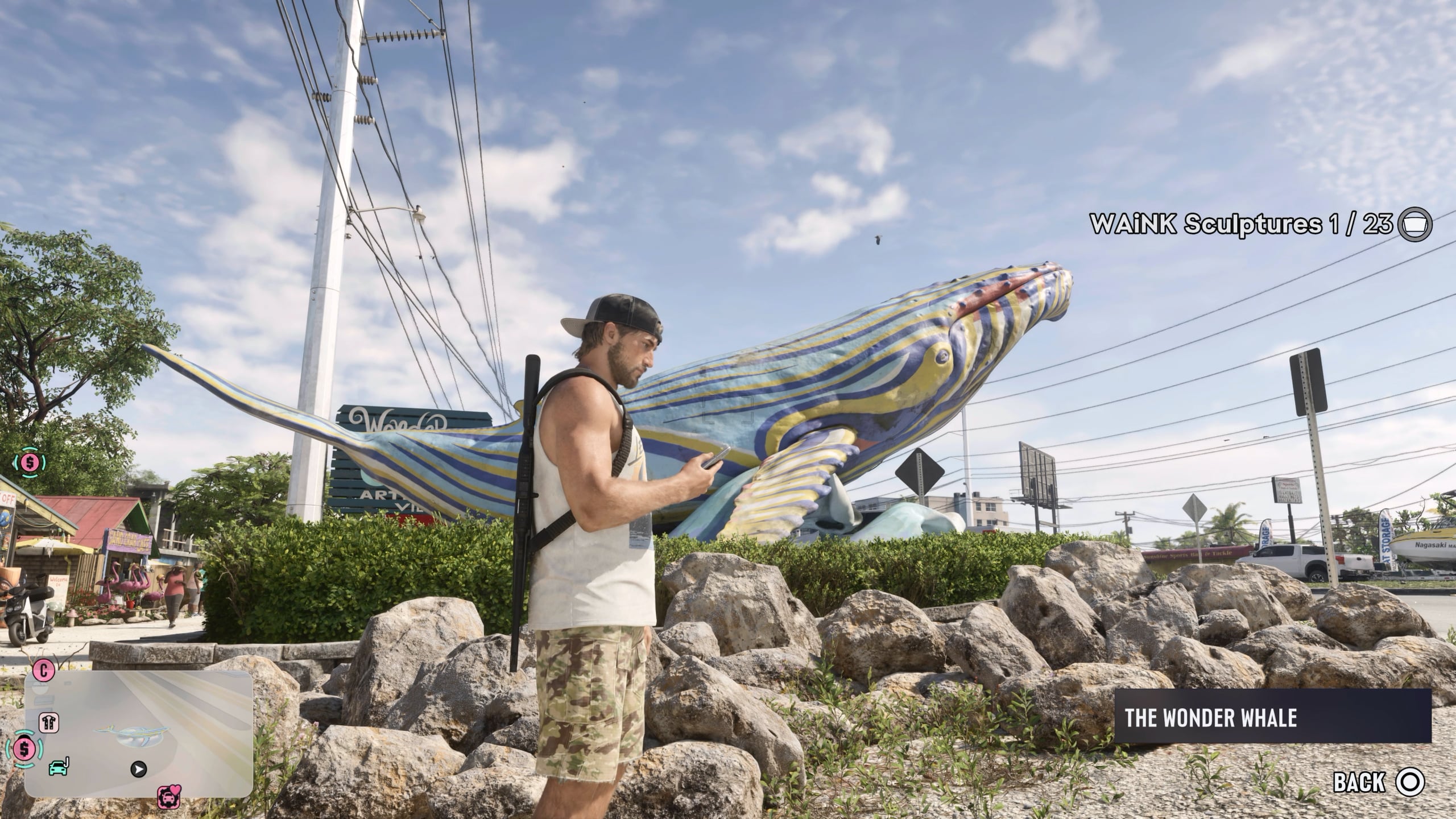
HGiG stands for HDR Gaming Interest Group, and it’s essentially an HDR interest group that advises a wide variety of TV manufacturers to ensure their products display HDR correctly across games and consoles. This setting can be found on most new HDR displays made by Panasonic, LG, Samsung, and more.
Without HGiG, your TV will “intelligently” try to adjust HDR black levels and highlights, and this can result in a washed-out image, in addition to breaking those “adjust until you can barely see the logo” brightness sliders you find in games like Grand Theft Auto 6. This is called tone mapping, and your device should already do this, meaning this is a second tone mapping step which is unnecessary and can ruin the intended image.
With HGiG in place, your device – be that a games console, PC, or even streaming box – will decide on the HDR presentation itself, without the TV adding additional tone mapping. This is recommended for basically all game consoles and PCs.
How to enable HGiG – GTA 6
The most common way to enable HGiG on your display will be to ensure your TV is already running Game Mode, and then most displays will have it under Screen and Brightness. On LG TVs, for example, it is found under the Brightness option while Game Mode is enabled, labeled “HDR Tone Mapping”.
After enabling HGiG for the first time, you should make sure to adjust your HDR and brightness levels in both your console’s settings menu and your game’s settings menu, in that order. Once that’s complete, you’ll be enjoying the intended and best possible Grand Theft Auto 6 HDR experience.