How to enable PSSR 2 on PS5 Pro
How to enable the PS5 Pro’s new PSSR 2 toggle on your console.
The new, upgraded, and enhanced PSSR is rolling out to PS5 Pro consoles right now.
Dubbed “PSSR 2” by fans, the new AI upscaling model is now available to all PS5 Pro users, and it can replace the older PSSR model, improving the visual fidelity of dozens of games at no extra cost to you as the user.
Sony has added PSSR 2 into the latest PS5 system software update, but if you want to see the benefits of PSSR 2 for yourself, you’ll need to enable it. We’re breaking down everything you need to know to get it done in this guide.
How to enable PSSR 2 – PS5 Pro
First, you must ensure that your PS5 Pro is updated to the latest system software version. Make sure it’s updated by navigating to Settings > System > System Software > System Software Update and Settings > Update System Software.
Now that your PS5 Pro is definitely up to date, it’s time to turn on PSSR 2.
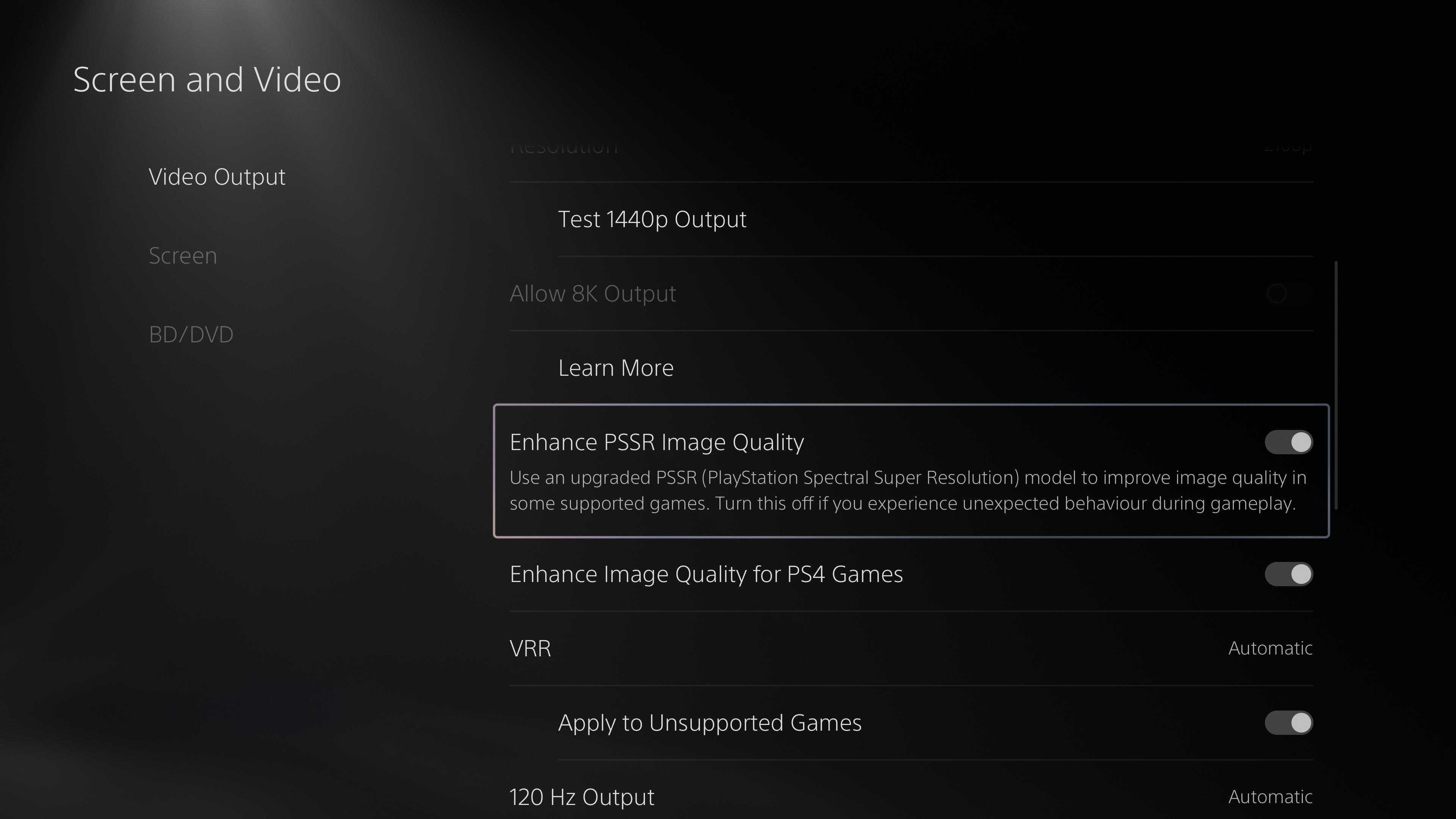
Navigate to Settings > Screen and Video > Video Output > Enhance PSSR Image Quality. Make sure this toggle is enabled.
This will ensure that the latest version of PSSR 2 is working for all PSSR-enabled games. We’ve already seen PSSR 2 at work in Resident Evil: Requiem, and it looks great, but now we have a good reason to revisit older PSSR-enabled games, like Silent Hill f, Alan Wake 2, and many more.
If, for some reason, the above steps do not allow you to see the PSSR toggle – and Sony hasn’t mysteriously removed it in an update after publishing – please ensure you’re using a PS5 Pro console, not a base PS5.