GTA 6 Navigation Experience explained: Which Navigation Experience should I pick?
Wondering which Navigation Experience to pick in GTA 6?
Wondering which Navigation Experience to use in GTA 6?
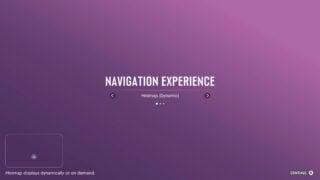
The very first choice you’ll have to make in GTA 6 when you load it up for the first time is which Navigation Experience you want to use in the game.
In this GTA 6 Navigation Experience guide, we’ll show examples of what the various Navigation Experience options look like in-game.
GTA 6 Navigation Experience Guide
When you start GTA 6, it will ask you which navigation experience you want, without actually showing you what they look like. Below, we’ve got examples of how each option looks in-game.
These screens are from the first 30 minutes of the game, so no spoilers at all.
Minimap (Dynamic)
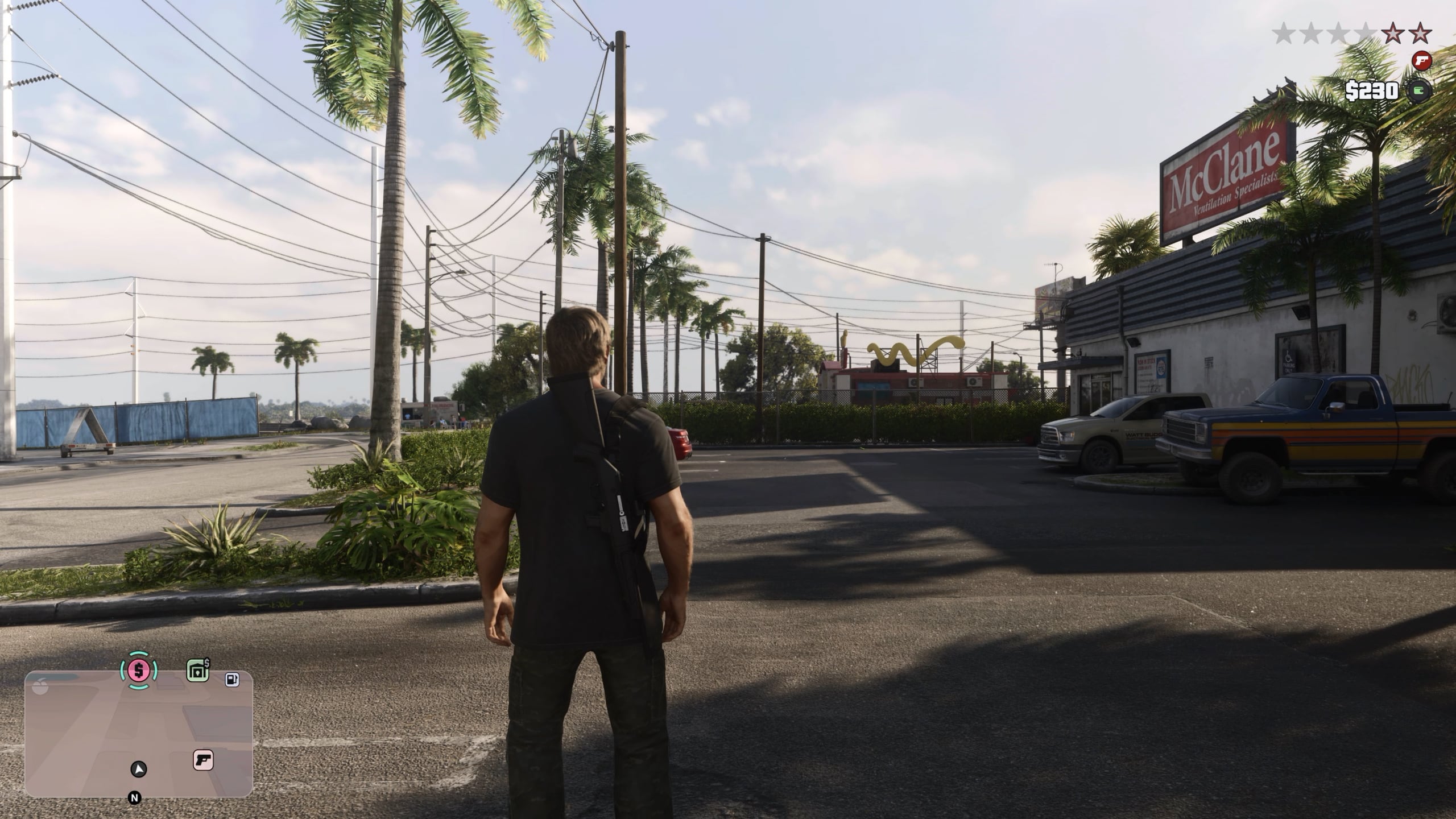
This option means that the Minimap only appears when it is needed. You can call it up by pressing the D-pad, but if you’re in a quiet situation, like walking around your house, it’ll disappear to give the game a more cinematic, less cluttered look.
Minimap and Compass (Dynamic)
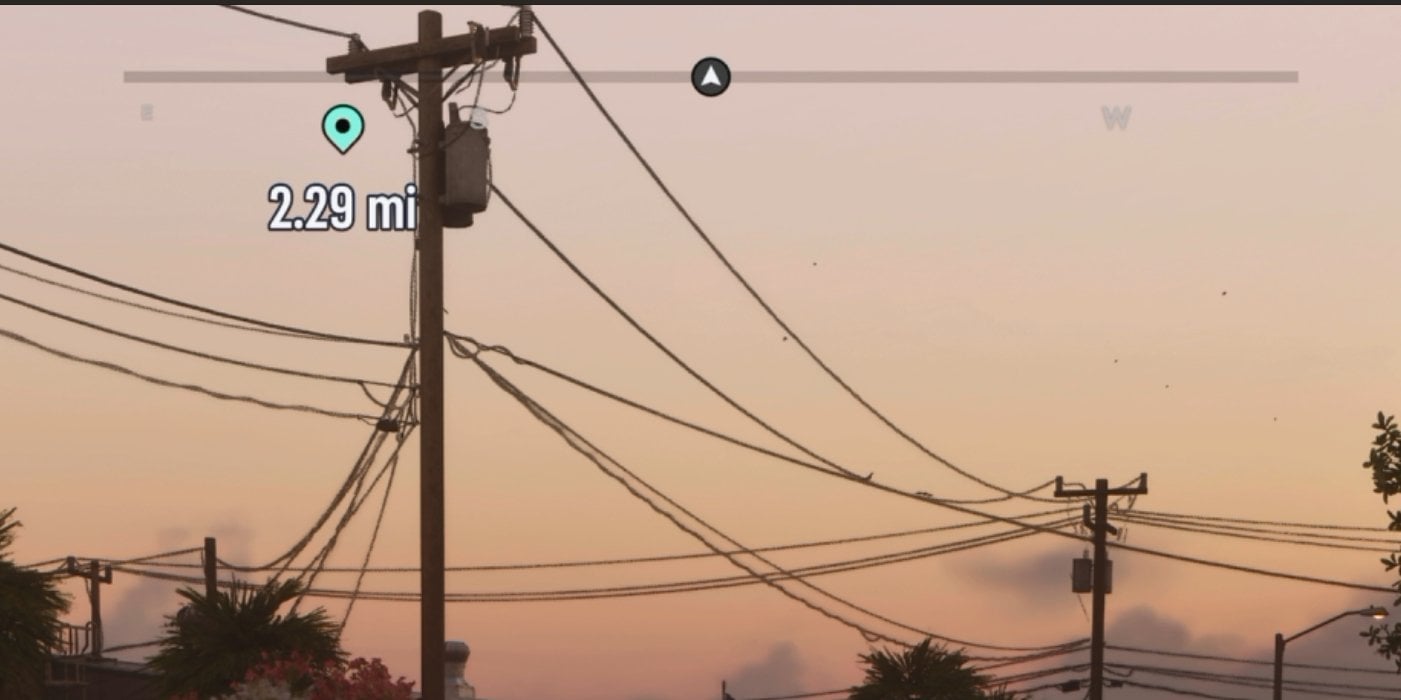
This option is the same as the previous, but it adds in the compass. As you can see from the cropped screenshot below, the compass includes your personal markers, mission markers, and dynamically shows off points of interest as you get closer to them. As with the previous option, the dynamic option means it only appears when called upon, or in an action sequence.
Always On
This Navigation experience does exactly what it says, it’s always on.
Can you change the Navigation Experience in GTA 6?
If you go into the settings menu, you can manually turn on or off dozens of navigation options, and set which information is shown to you permanently, and which you’d prefer to hide. These Navigation Experiences are just a way to get you into GTA 6 faster, so don’t worry too much about what you pick. The game offers a huge amount of customization when it comes to UI.