How to download Miis in Tomodachi Life via Miitopia
How to transfer you Miitopia Miis into Tomodachi Life: Living The Dream using just the demo.
Tomodachi Life: Living The Dream finally has a demo available, and it’s making people ask some tough questions.
Living The Dream is a surprisingly locked-down game in regards to media sharing, and that’s probably because it can be a bit risqué. There are no filters in the game, allowing the Mii characters to say basically anything you want, and they’ll improvise too. While the game isn’t rude by itself, in the hands of the right player, it certainly can be.
As a result, online sharing features are limited, and that includes custom Mii characters. But there is a way around this – kind of – that will help you get a cast of Mii characters set up quickly and easily; you just need the Miitopia demo. Thanks go to Good Vibes Gaming for explaining this unusual workaround.
How to download Miis in Tomodachi Life via Miitopia
Tomodachi Life: Living The Dream doesn’t have a way for you to share and download your Mii characters, but luckily, Miitopia does, and by jumping through a few hoops, you can import Miitopia Miis into Tomodachi Life. We’re going to break it down step-by-step below.
How to download Miis in Miitopia
First off, you should know that this trick works with the Miitopia demo, so you don’t need to buy another game to get this started.
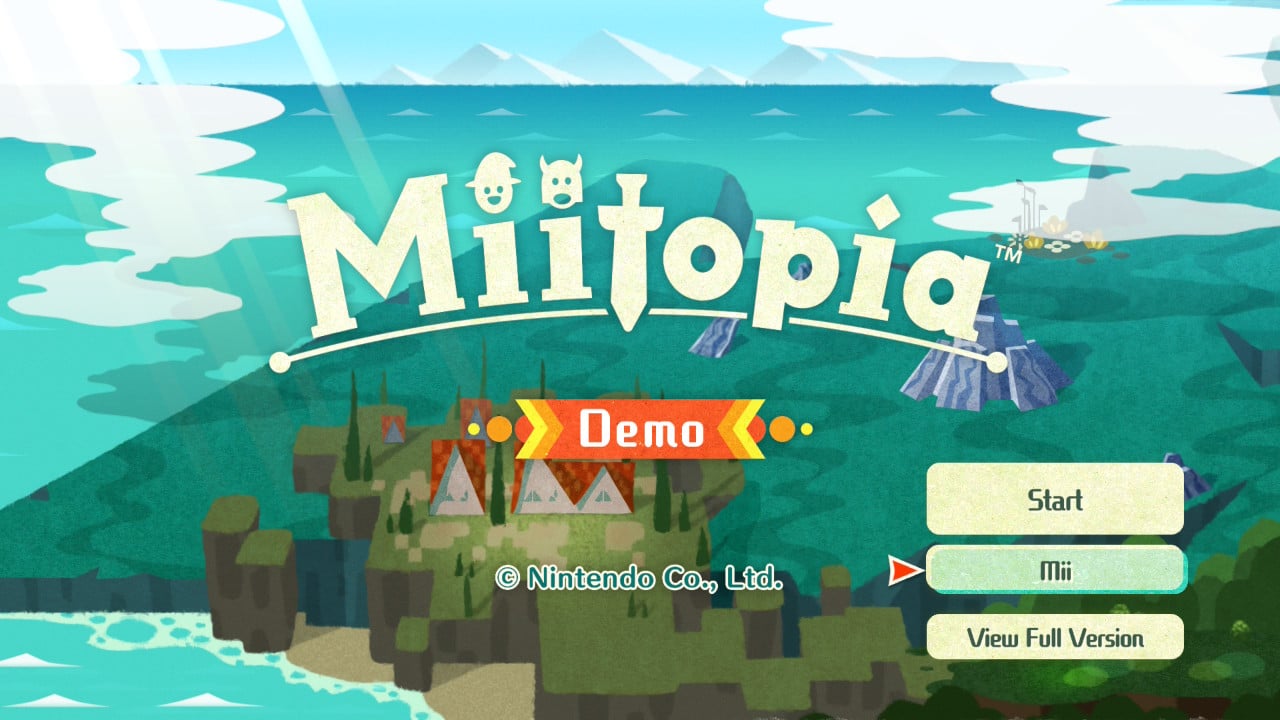
On the Miitopia home menu, there’s an option to manage your characters in the “Mii” submenu, so open that. In the Menu here, you can choose to receive a new Mii using an Access Key.
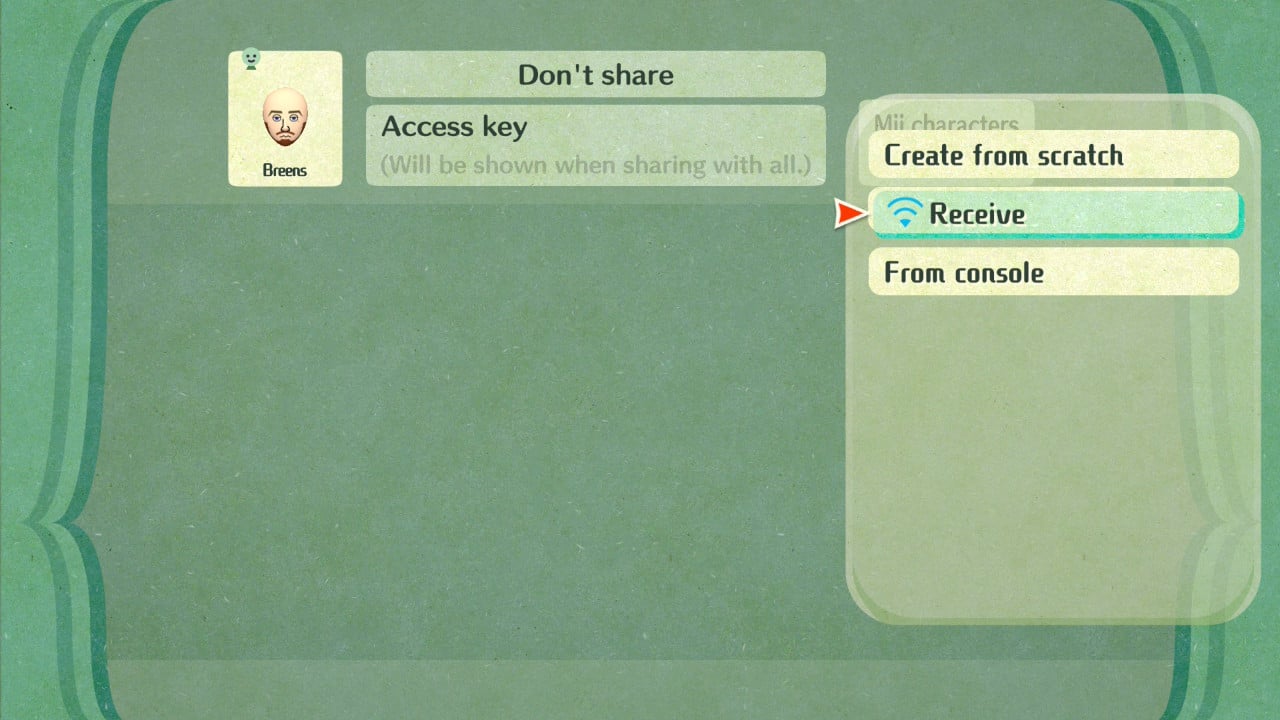
Miitopia Access Keys are available online in numerous places, but many have expired, so it might be difficult to find a compatible code. Once you find one, select the Miis you like and choose to receive them on your console. We chose Hank Hill, whom you can download with the Access Key 4N8HCH0.
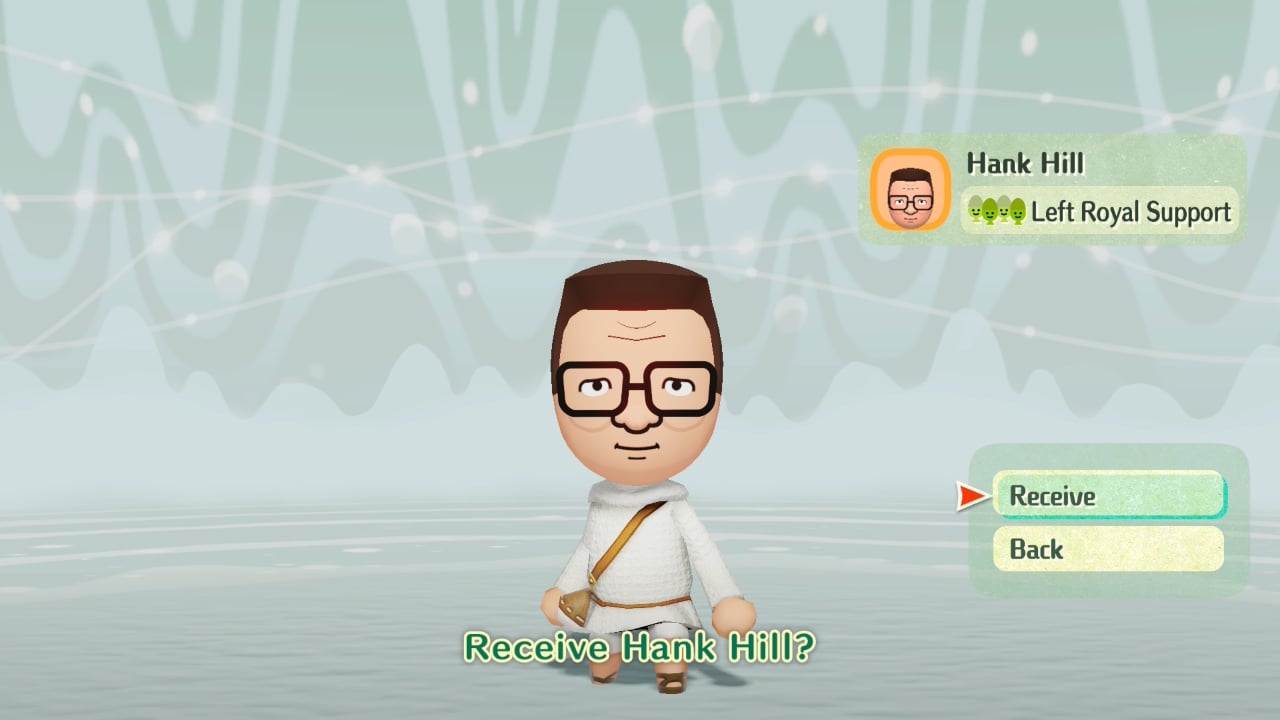
Once you’ve downloaded a Mii, you can select it and choose to copy it to your Nintendo Switch console. Choose this, and the Mii will be available on a system level.
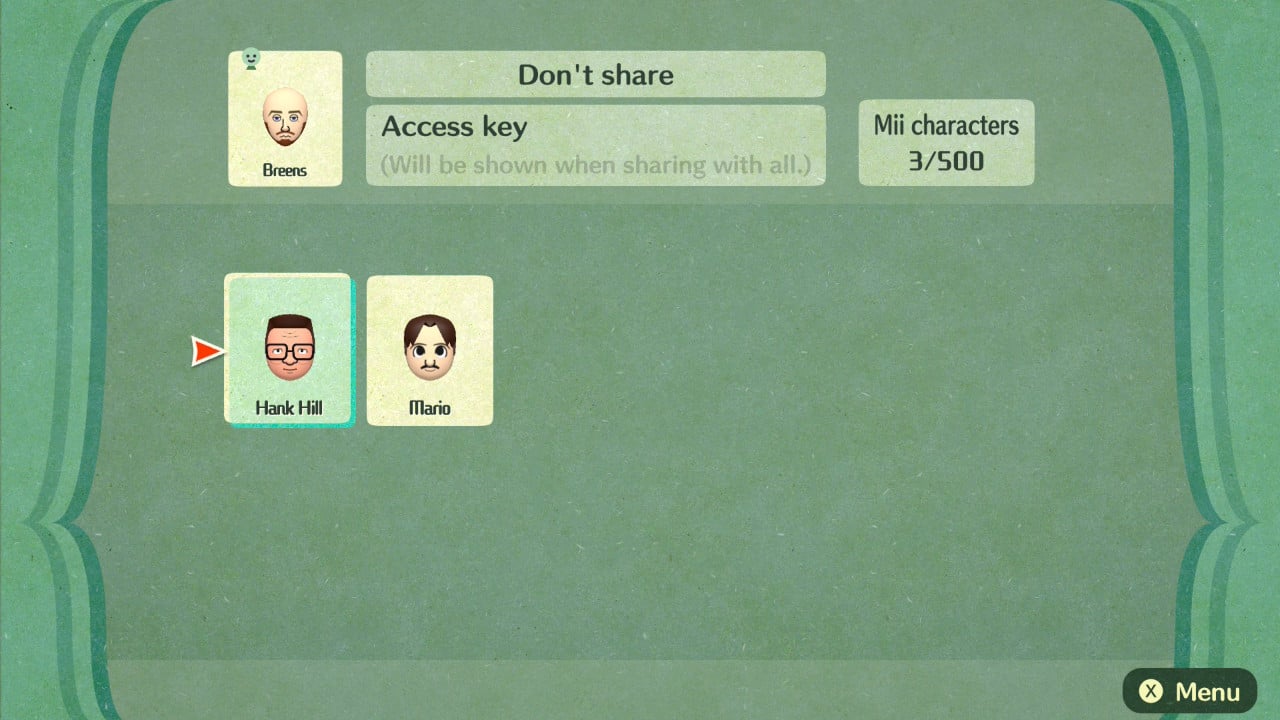
It’s important to note that many Miitopia Miis use custom make-up to drastically change their appearance, and these changes are not saved on a system level. Only customisations you can make in the system’s own Mii editor can be saved, limiting the kinds of Miis you can import from Miitopia. For example, Miitopia’s Hank Hill has forehead wrinkles which are not present in the system or Tomodachi Life version.
How to transfer Miis into Tomodachi Life: Living The Dream
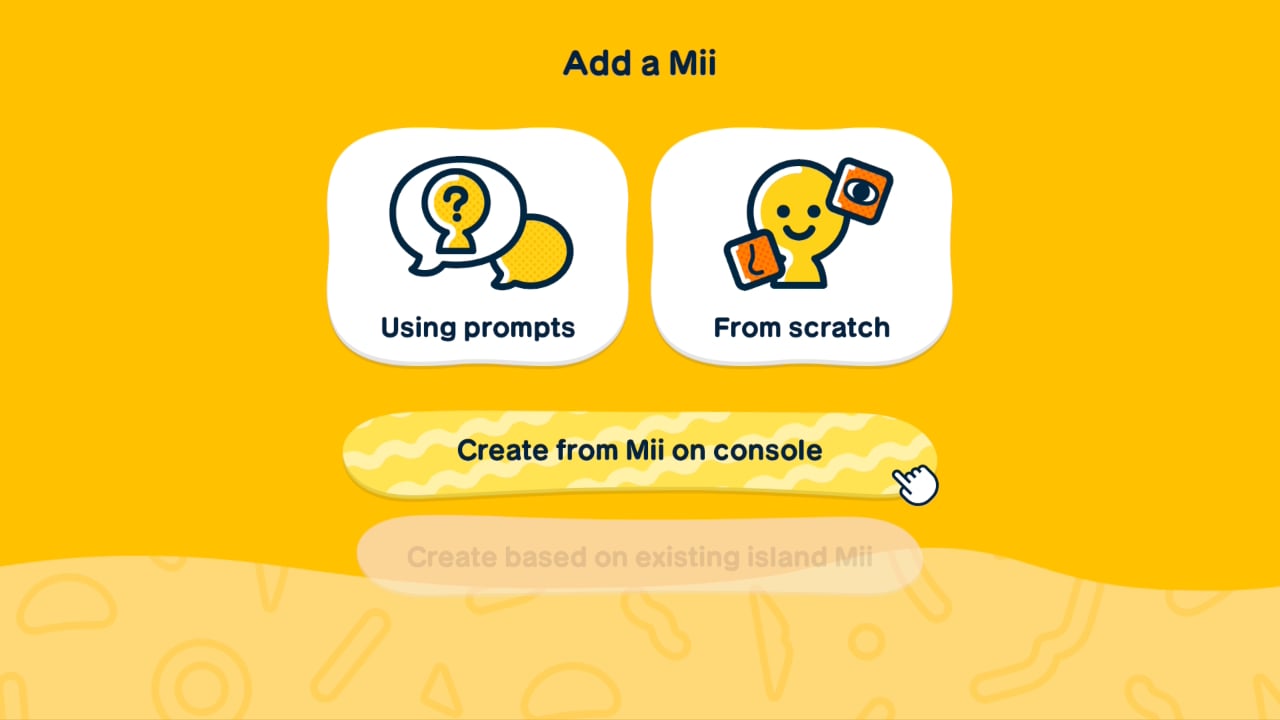
Now that your Mii is present on the system level, you bring them over to Tomodachi Life: Living The Dream.
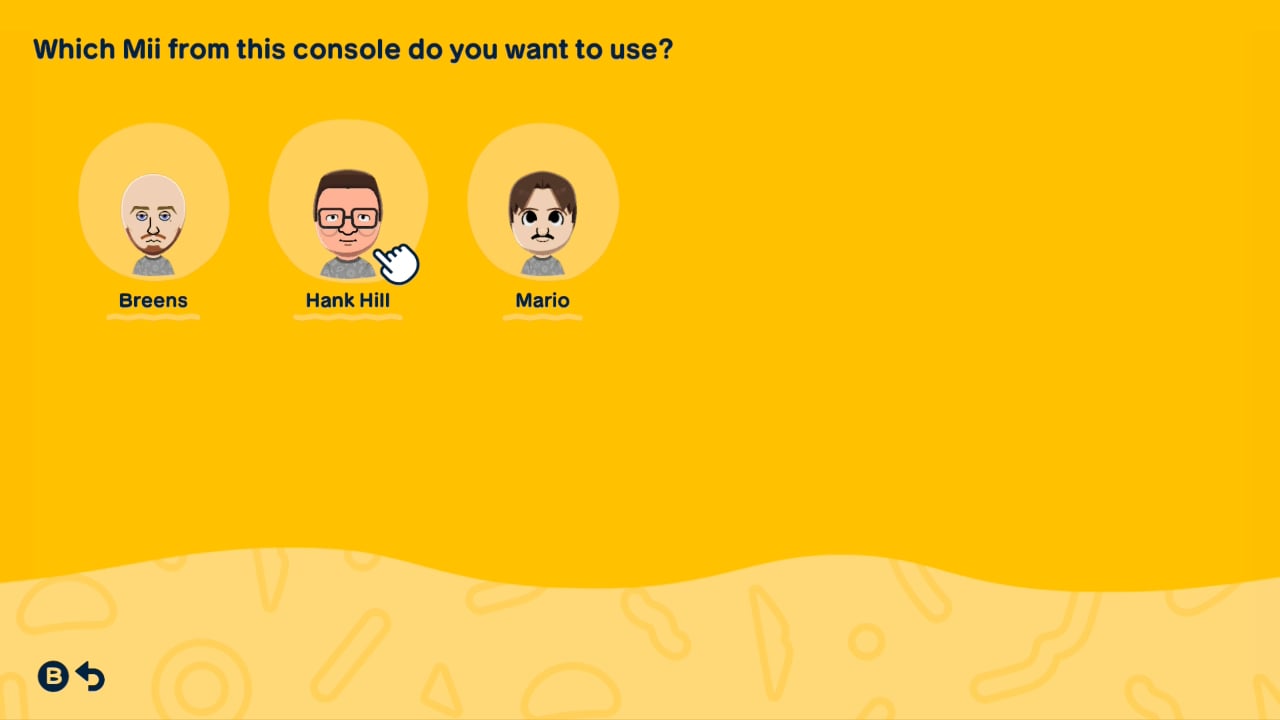
When you’re given the option of creating a new Mii character, select “Create from Mii on console” and then choose the Mii character you want. You should have any Miis you’ve previously saved to the console available.
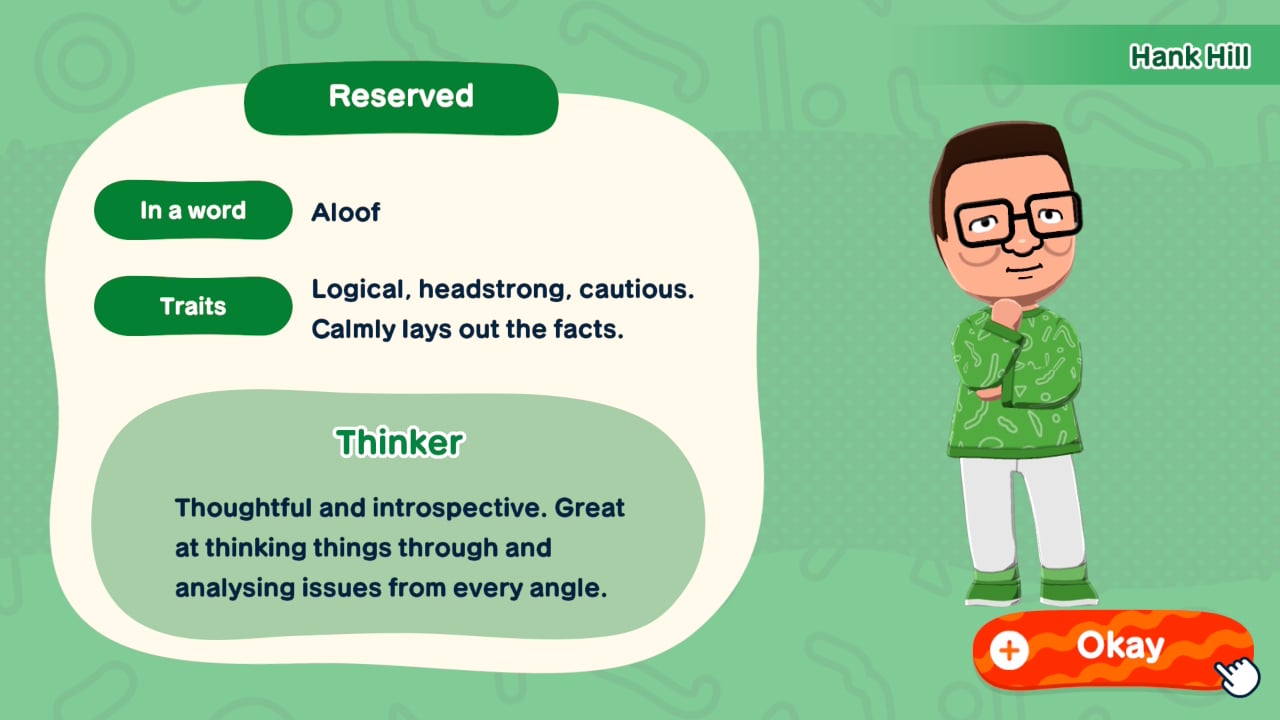
The Mii will fully transfer over, and you’ll be able to make some adjustments to their height and personality before finishing off. Again, it’s important to note that make-up and some game-specific customisations aren’t available via this transfer method, but Tomodachi Life’s own customisation options should make up for it.